AI Eye Color Filter
Ever wondered how you'd look with blue, green, or hazel eyes? SharkFoto's AI eye color filter recolors your irises in a photo while keeping the rest of your face — your skin, your expression, everything else — exactly the same. It reads the shape of your iris and the light in your eyes, then swaps in a new color that still catches highlights and reflections so it looks like it's really yours. Sign up free to get 10 credits, upload a clear selfie, pick a new eye color, and download your result — with no watermark — ready to post or compare.
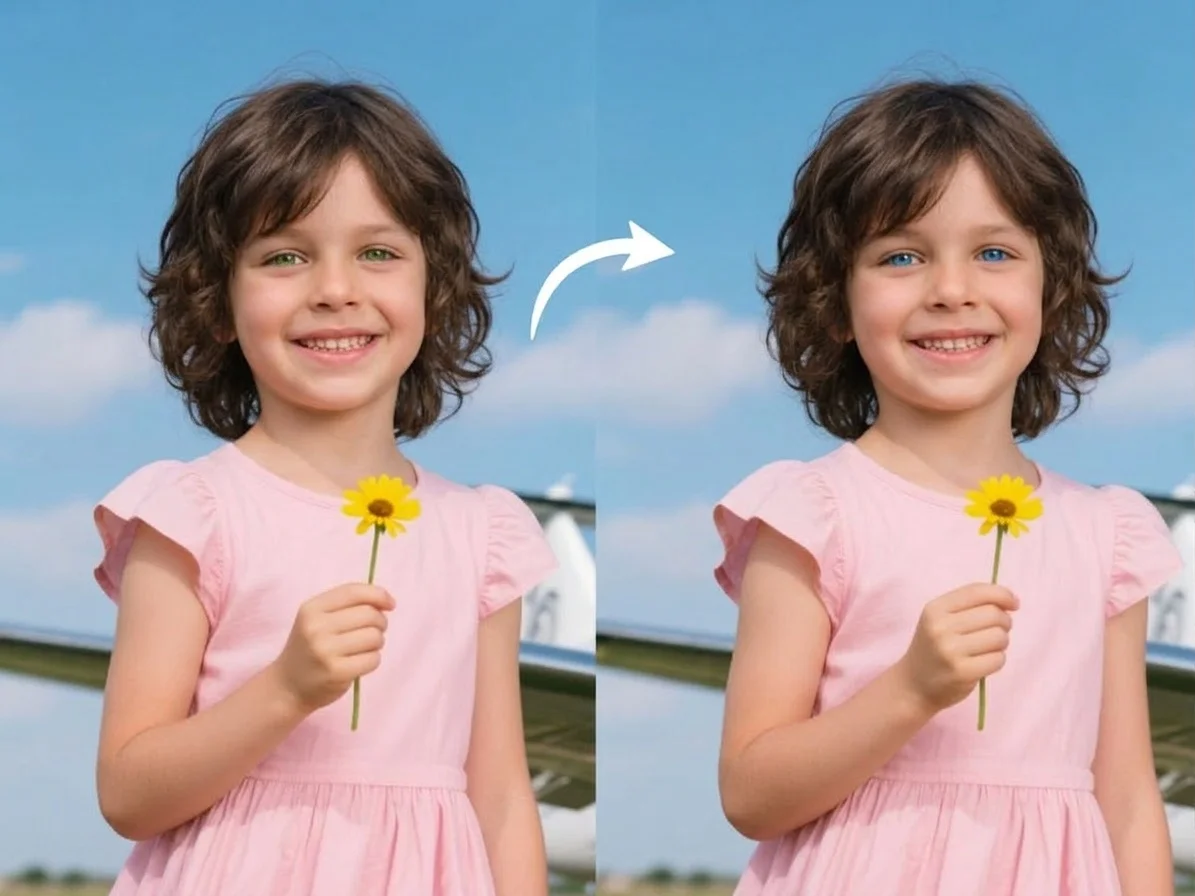 PopularAI Eye Color Filter
What is an AI eye color filter?
An AI eye color filter is a photo tool that changes the color of the eyes in a picture — say from brown to blue, green, or hazel — without touching anything else in the shot. You upload a selfie, the AI locates each iris, and it repaints just that area in the color you choose while preserving the natural highlights, pupil, and edges so the new eyes still look real.
All AI Eye Color Filter Effects
Recolor your eyes to any shade, or go straight for a striking blue. Pick one to start.
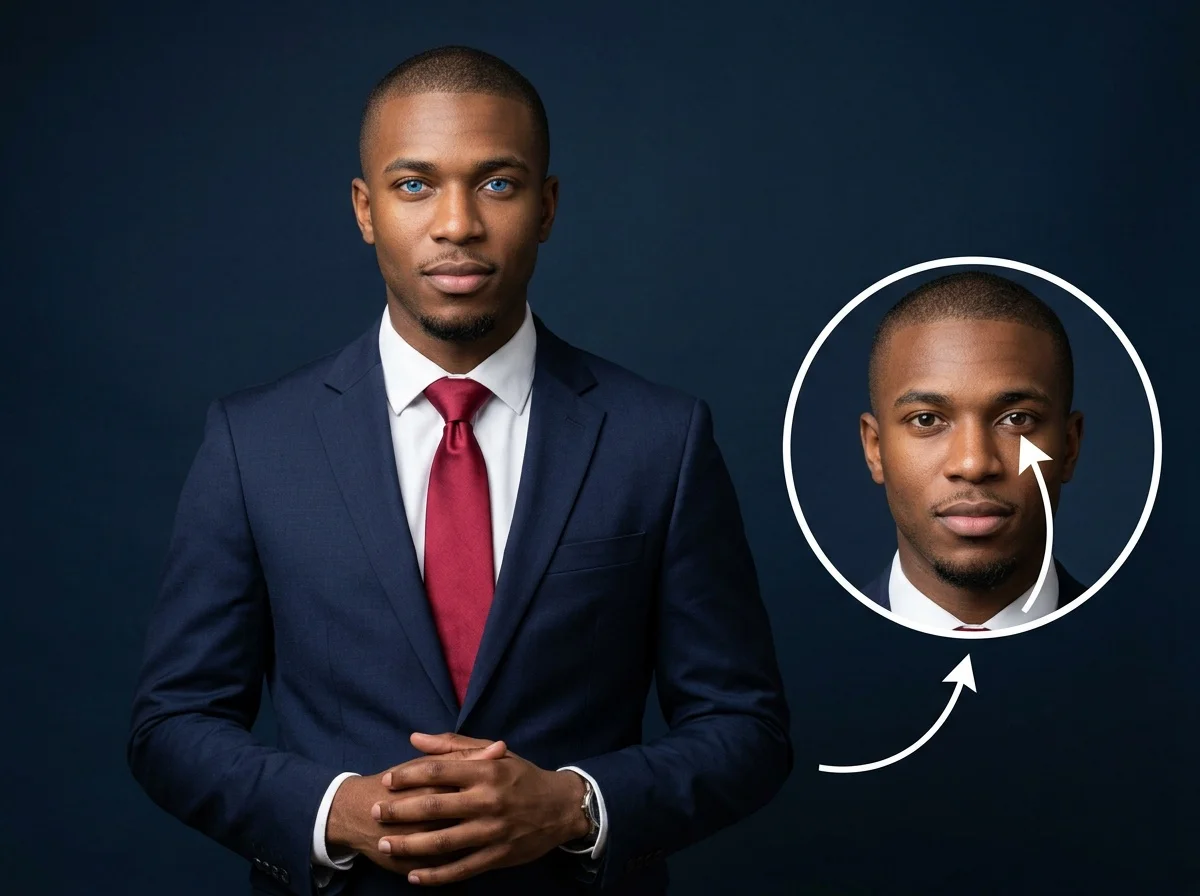
Before & after
A brown-eyed selfie, recolored to bright blue.
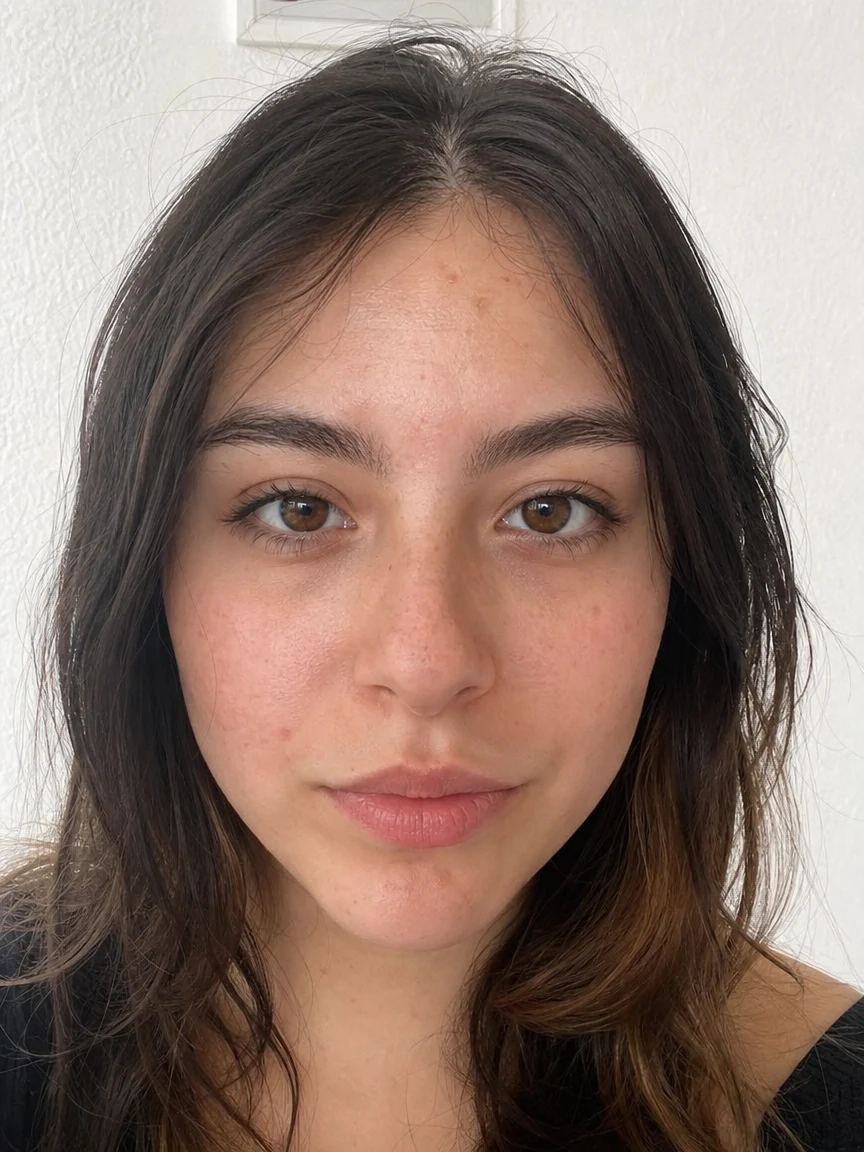 Before
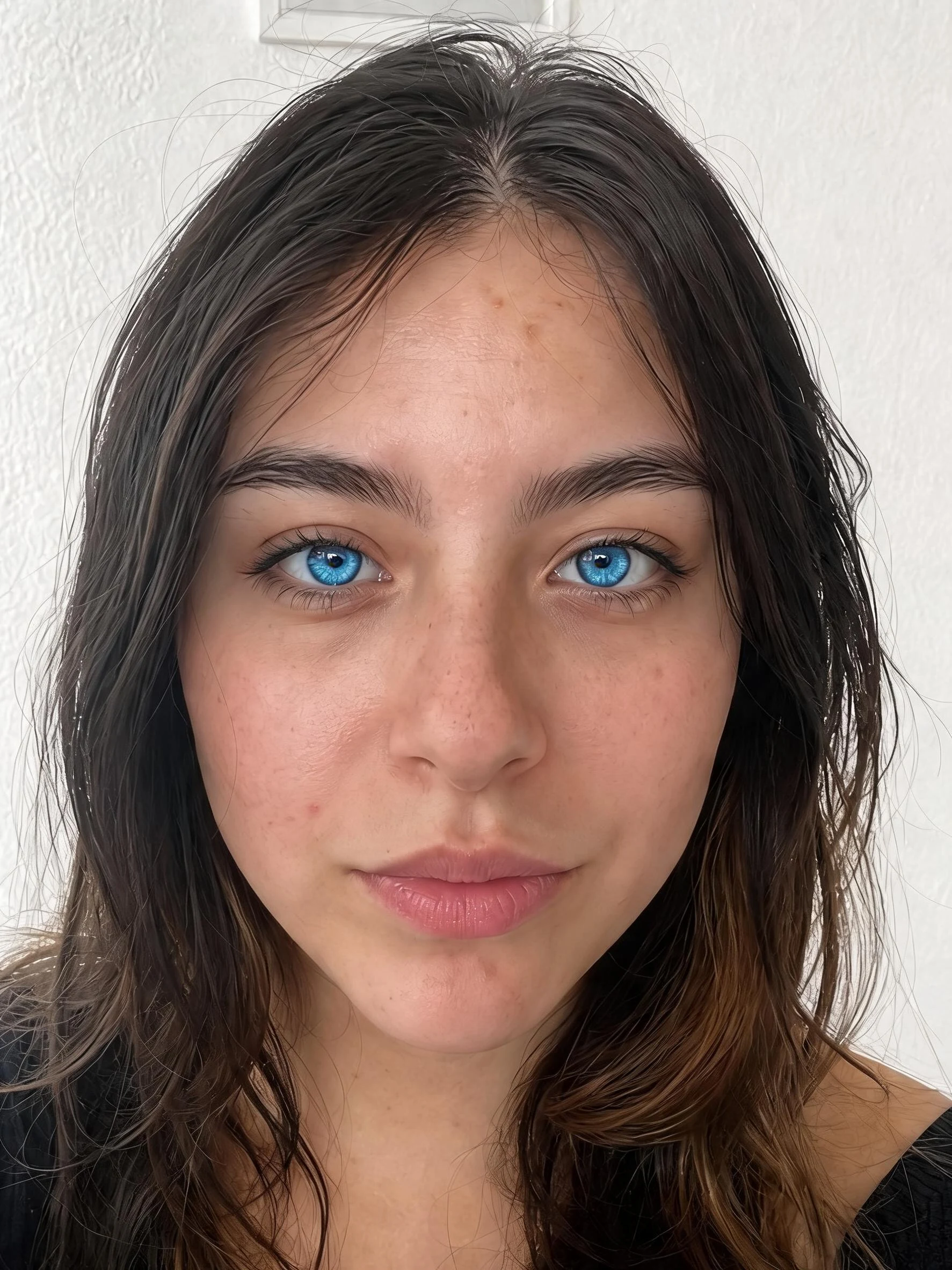 After
After Before
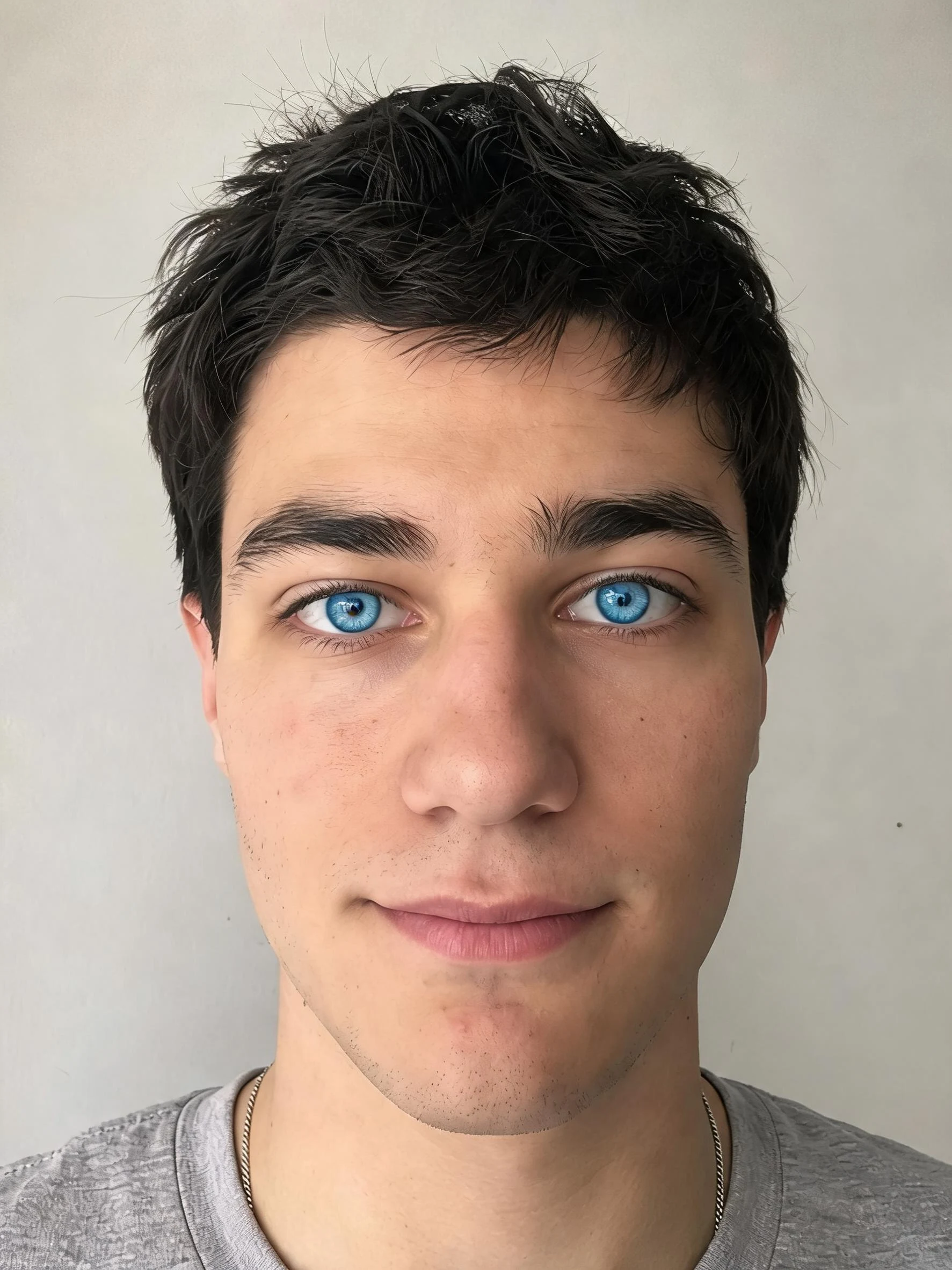 After
After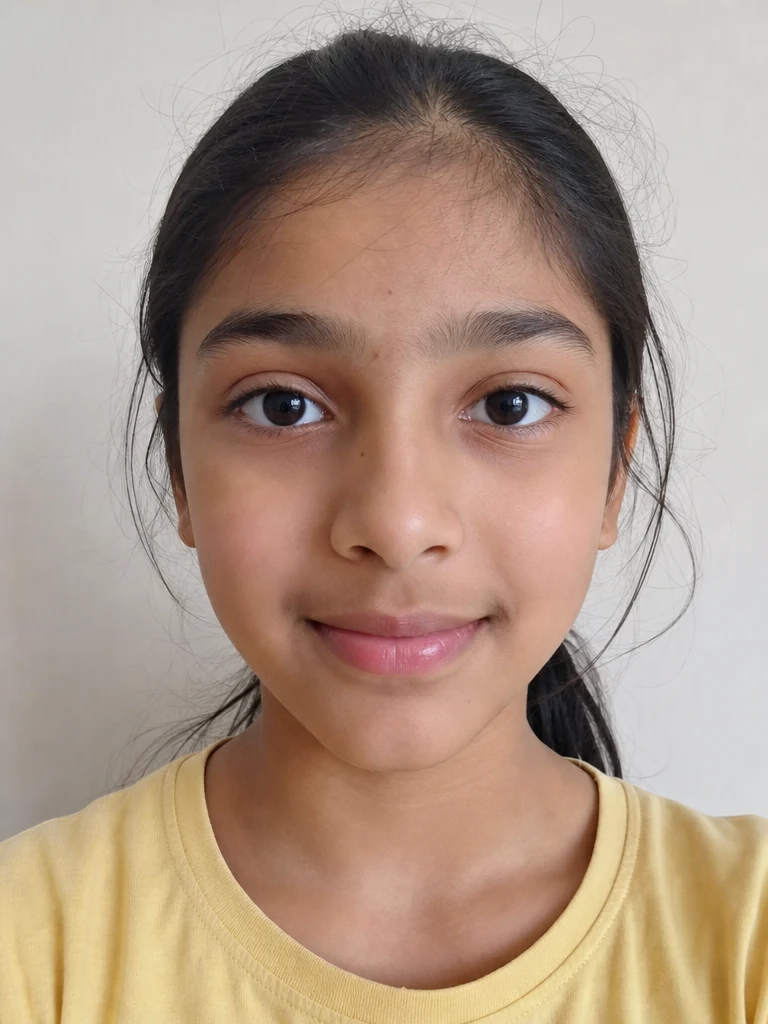 Before
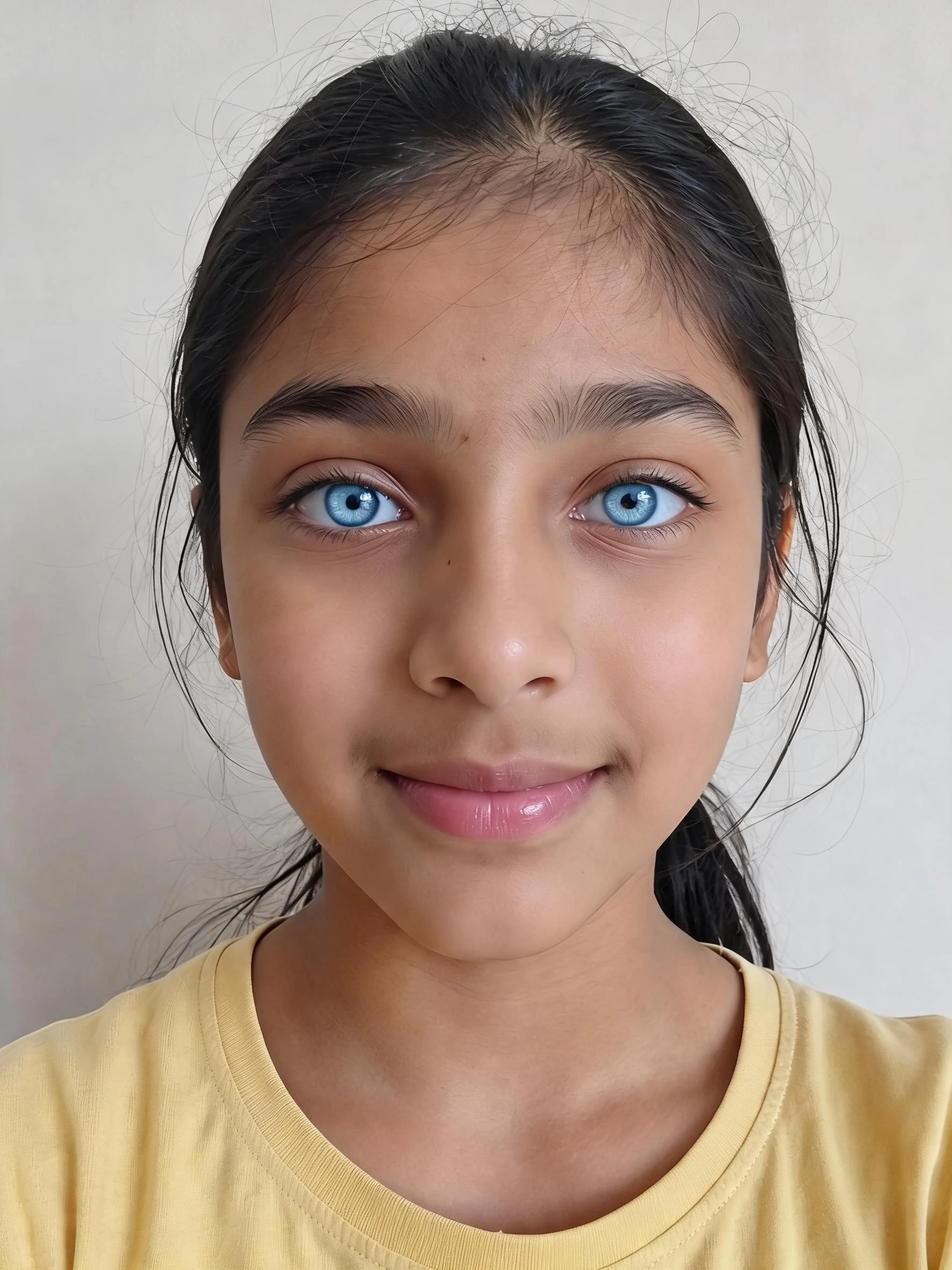 After
AfterWoman Closeup Warm
How to use the AI eye color filter
Three steps, right in your browser.
Upload your photo
Drag in or select a clear, front-facing photo where your eyes are open and in focus. Good lighting and a straight-on angle give the AI the sharpest view of your irises. Your photo is used only to make your result.
Pick your eye color
Sign in for your 10 free credits, then choose the AI Eye Color Filter to recolor your eyes to blue, green, hazel, or another shade — or jump straight to the AI Blue Eye Filter for a striking blue. The AI keeps your natural highlights and pupil so the new color reads like your own eyes, not a flat overlay.
Download and share
Preview your new eye color, then download the photo at full resolution with no watermark. Post it, send it to friends, or set it side by side with the original to see the difference.
What you can make
Popular ways people use the eye color filter.
Preview a color change
Curious how blue, green, or hazel eyes would suit you? See it on your own face in a photo first, before you ever consider colored contacts.
Go bold with blue
Want striking blue eyes for a specific look? The blue eye filter gives you a clean, vivid blue that still keeps the natural sparkle in your eyes.
Profile pictures & dating photos
Test whether a different eye color makes your portrait pop before you pick the photo you'll actually use for a profile or dating app.
Match a costume or theme
Finish a cosplay, Halloween, or themed shoot with eyes in exactly the color the character calls for, without buying special-effect contacts.
Fun selfies & surprises
Give yourself a whole new eye color for a laugh, surprise friends with a look they've never seen, or just play with a version of you that pops.
Side-by-side comparisons
Recolor the same selfie a few different ways to compare blue against green against hazel and settle on the shade that flatters you most.
Why use SharkFoto's eye color filter
Recolors only the eyes
The AI isolates your irises and changes just their color, leaving your skin tone, expression, hair, and background untouched so nothing else in the photo shifts.
Keeps highlights and depth
Instead of painting flat over your eyes, it preserves the pupil, catch-lights, and reflections, so the new color still looks glassy and real rather than pasted on.
Any shade you want
Go for a natural blue, green, or hazel, or reach for something bolder. The blue eye filter is one tap away when you want a clean, vivid blue in particular.
10 free credits, no watermark
Sign up free and get 10 credits to start trying colors. Your download comes at full resolution with no watermark, so it's clean enough to post, send, or save for comparison.
Tips for the best results
Use a clear, front-facing photo — the AI needs a sharp, straight-on view of your irises to recolor them cleanly; steep angles or side profiles leave less of the eye to work with.
Make sure your eyes are open and in focus — squinting, motion blur, or half-closed eyes give the AI little iris area, so the new color can come out patchy.
Start from an evenly lit photo — harsh glare or heavy shadow over the eyes can wash out the recolor and hide the natural highlights that make it look real.
Avoid glasses glare and hair over the eyes — reflections on lenses or strands across the iris block the AI from seeing the full eye to recolor it.
Use the highest-resolution photo you have — low-res or heavily compressed images limit how sharp and convincing the recolored iris detail can be.
Frequently asked questions
Is the AI eye color filter really free?
What kind of photo works best?
Do I get an image or a video?
What eye colors can I choose?
How long does it take?
Is my photo safe and private?
Will the new eye color look natural?
Related AI effects
More ways to reimagine your look.