- "aspect_ratio": "16:9",
- "image": ""
AI Image Extender
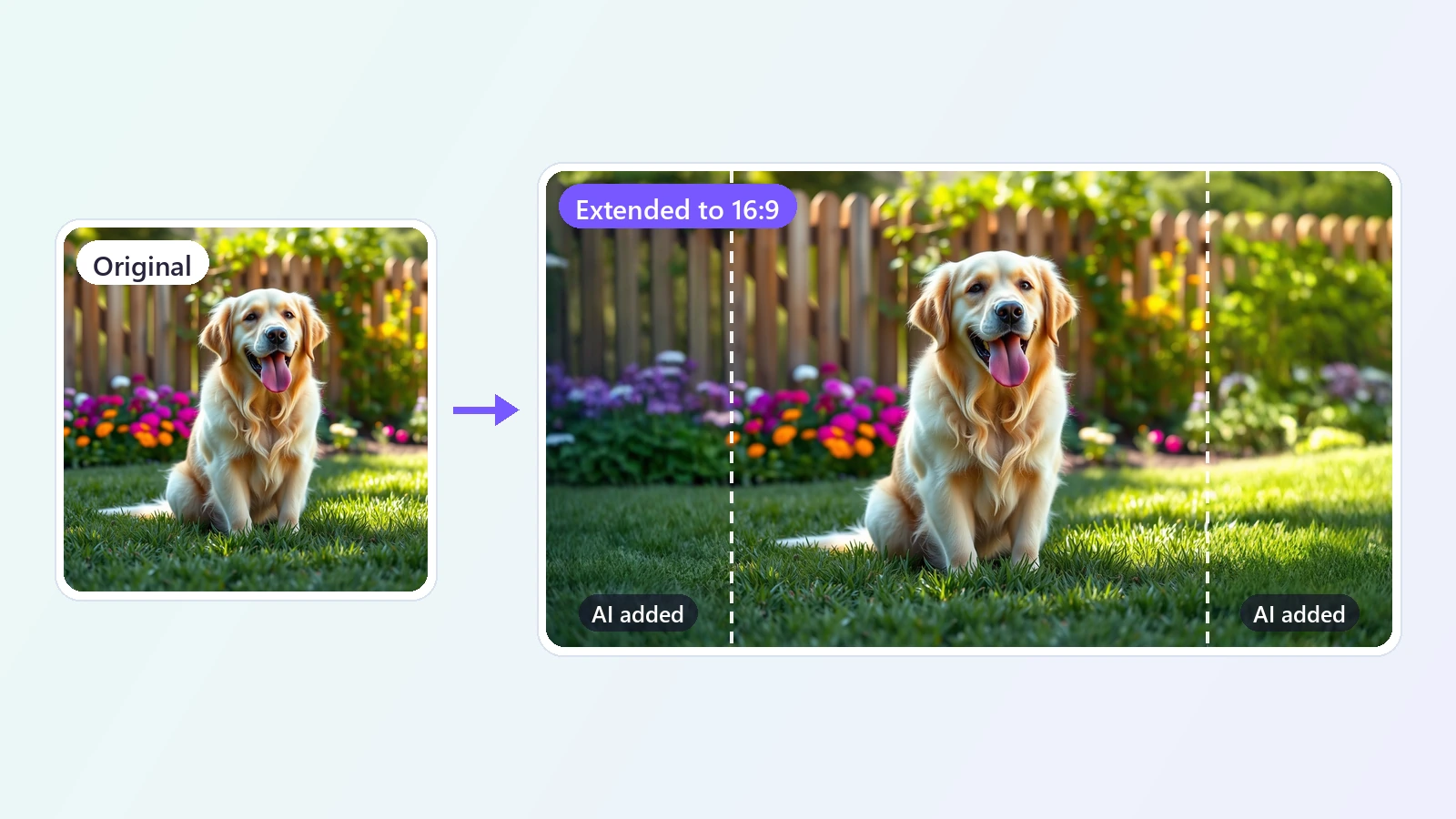
Expand an image beyond its borders. Upload a picture, pick the shape you need, and the AI fills in the new space with background that matches your photo - the original stays exactly as it is.
Sometimes a picture is the wrong shape. A portrait photo has to fill a wide website banner, a square product shot needs to become a vertical story, or a close crop cut off the scenery you wanted to keep. Stretching the image distorts it, and cropping it loses even more. An AI image extender solves this the other way round: it keeps your picture untouched and paints new image around it. You upload a photo and choose the shape you need, and the AI studies the scene - the lighting, the perspective, the textures, where the grass, sky, wall or floor is going - and continues it past the original edges until the canvas reaches the new shape. This is also called outpainting or uncropping. The original picture stays in the middle, pixel for pixel, at its full resolution, so faces, products and text in your photo are not redrawn. People use it to turn one photo into every format a campaign needs, to give a subject more breathing room, to make wallpapers from a favorite shot, and to fix photos that were framed too tightly. There is no prompt to write and nothing to mask: pick a shape and the image expander does the rest.
At a glance
Your picture stays untouched
Only the new area is generated.
Original pixels are kept
The photo you upload sits in the center of the result exactly as it was, at full resolution.
Seamless continuation
Lighting, perspective and textures are matched so the new background blends into the original.
Any shape you need
Nine target shapes.
From banner to story
16:9, 9:16, 1:1, 4:3, 3:4, 3:2, 2:3, 4:5 and 5:4 cover websites, social posts, stories, thumbnails and prints.
Wider or taller
Extend a picture sideways to make it wide, or up and down to make it tall.
No editing skills
One upload, one choice.
No prompt, no mask
You do not have to describe the scene or paint a selection.
Fast
An extended image is ready in about 20 seconds.
How to extend an image
From a tight crop to a wider picture in three steps.
Upload your image
JPG, PNG or WebP. Photos, product shots, portraits and artwork all work.
Pick the new shape
Choose 16:9 for a banner, 9:16 for a story or reel, 1:1 for a square post, or one of six other shapes.
Download the result
The AI extends the picture to the new shape in about 20 seconds. Download it as a PNG.
What people use it for
Banners and headers
Turn a portrait or square photo into a wide website or channel banner.
Stories and reels
Make a horizontal photo fill a vertical 9:16 screen without cropping the subject.
Product photos
Add space around a product for marketplaces, ads and text overlays.
Fixing tight crops
Uncrop a photo that cut too close to the subject.
Wallpapers
Extend a favorite picture to fit a desktop or a phone screen.
Prints and frames
Change the proportions of a photo to match a frame or a print size.
Frequently asked questions
How do I extend an image with AI?
Is this AI image extender free?
Will my original picture change?
What is the difference between extending, outpainting and uncropping?
Can I change a portrait photo into a landscape one?
Does it lower the quality of my photo?
Do I need to write a prompt?
Can I extend only one side?
What image formats are supported?
Can I extend an image more than once?
Good to know
The picture stays in the middle — New space is added evenly on both sides. To extend one side only, crop the original first so the subject sits where you want it.
Pick a different shape — If your image already has the shape you choose, there is nothing to add. Choose a wider or taller shape than the original.
The new area is invented — The AI continues the scene in a plausible way; it cannot know what was really outside the frame. If a side looks off, try a less extreme shape.
Cut-off subjects are hard — A person or object that is cut by the edge of the photo may be completed in an unexpected way. Photos with background at the edges extend best.
Related tools & models
Give your picture more room
Upload an image, pick a shape and expand it in seconds.