- "language": "$empty",
- "vad_filter": true,
- "audio": ""
No effects available
AI Speech to Text
Transcribe audio to text in seconds. Upload a voice memo, interview, lecture or podcast and get an accurate transcript you can copy, plus an SRT subtitle file with timestamps - in English, Chinese, Spanish and dozens more languages.
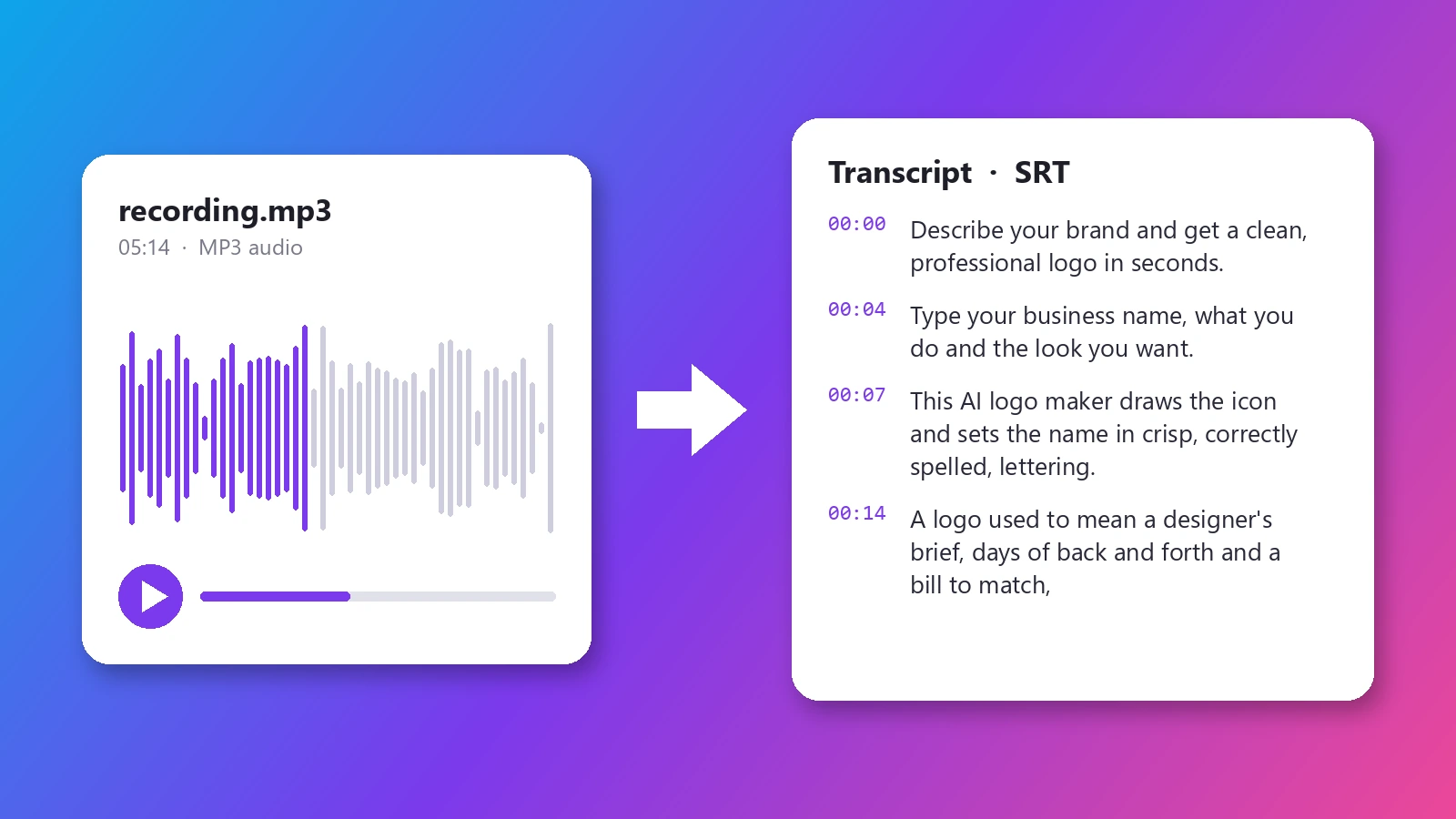
Typing out a recording by hand takes four to six times as long as the recording itself, and most free voice to text tools only work while you speak into a microphone. This AI speech to text tool works on files you already have: upload the audio and it transcribes the whole thing, with punctuation, while you get on with something else. A five-minute English recording comes back in well under a minute. Alongside the plain transcript you get an SRT subtitle file with a timestamp for every line, so the same upload gives you meeting notes, a quotable interview, captions for a video or searchable text for a podcast episode. It recognises dozens of languages automatically, and for Chinese you can choose simplified or traditional characters. It is built on Whisper Large v3 Turbo, a speech recognition model trained on a very large amount of multilingual audio, so it copes well with natural speech, different accents and everyday background noise. For conversations there is a second model, AssemblyAI Universal-3.5 Pro, which also marks who is speaking.
At a glance
Accurate transcripts
AI transcription, not a rough draft.
Punctuation included
Sentences come back with capital letters, commas and full stops, so the transcript is ready to read, quote or paste into a document.
Handles real recordings
Phone voice memos, video calls and lectures with accents or light background noise all transcribe well; silence is skipped rather than turned into made-up words.
Text and subtitles
Two files from one upload.
Copy or download TXT
Read the transcript on the page, copy it in one click or download it as a text file.
SRT with timestamps
An SRT subtitle file splits the transcript into timed lines you can add to YouTube, Premiere, CapCut or any video player.
Many languages
Auto detect or choose.
Auto language detection
The spoken language is detected automatically, or pick English, Chinese, Spanish, French, German, Portuguese, Japanese or Korean yourself.
Simplified or Traditional Chinese
Chinese recordings can come back in simplified or traditional characters - you choose.
How to transcribe audio to text
From recording to transcript in three steps.
Upload your audio
MP3, WAV, M4A, FLAC, OGG or WebM. Voice memos, calls, meetings, lectures, podcasts and the audio track of a video all work.
Pick the language
Leave it on Auto detect or choose the spoken language. For Chinese, choose Simplified or Traditional characters.
Copy or download
Read and copy the transcript right on the page, or download it as a TXT file and as SRT subtitles with timestamps.
What people transcribe
Meetings and calls
Turn a recorded meeting, sales call or video call into notes you can search, share and quote.
Interviews
Transcribe interviews for articles, research and podcasts instead of typing them out by hand.
Lectures and classes
Turn recorded lectures, seminars and online classes into study notes.
Voice memos
Convert voice notes and memos from your phone into text you can edit and paste anywhere.
Video subtitles
Upload the audio from a video and use the SRT file as captions on YouTube, TikTok or in your video editor.
Podcasts
Publish a transcript with each episode so listeners - and search engines - can read and find it.
Frequently asked questions
How do I transcribe audio to text?
Is this speech to text free?
How accurate is the transcription?
Which audio formats can I upload?
Can I get subtitles for a video?
Which languages are supported?
Why is my Chinese transcript in traditional characters?
Can it tell who is speaking?
Is this voice to text or dictation?
What happens if the file has no speech?
Good to know
Speaker labels need the second model — The default Whisper model transcribes everything in order without marking who is speaking. For interviews and meetings, choose AssemblyAI Universal-3.5 Pro: the transcript is split into Speaker 1, Speaker 2 and so on. The subtitle file stays unlabeled.
Clear audio works best — Heavy background music, people talking over each other or a very distant microphone lower accuracy. Proper names and rare terms may need a quick check.
Silent files are refunded — If no speech is detected, the task fails and the credits are returned instead of producing made-up text.
Related tools & models
Got a recording to transcribe?
Upload it and get the transcript and subtitles in about a minute. Free to try, no credit card needed.