- "aspect_ratio": "$empty",
- "prompt": ,
- "resolution": "1k",
- "images": [],
- "output_format": "png"
AI Background Replacer
Swap any photo background for a new scene you describe in words — keep your subject, change everything behind it.
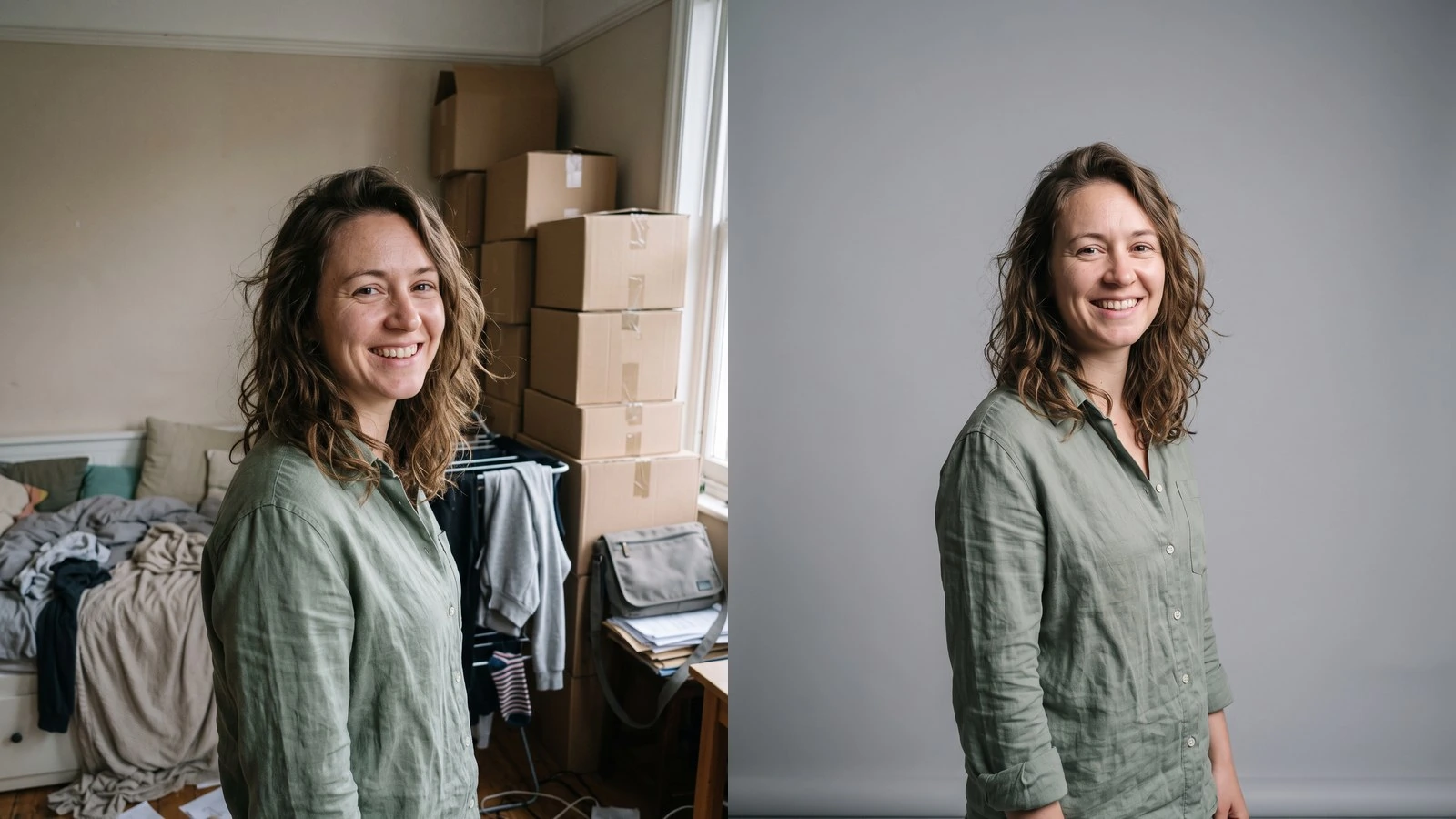
An AI background replacer swaps the scene behind your subject for a new one you describe in plain language. Unlike a background remover, which leaves you with a transparent cutout to composite yourself, the replacer generates the new setting and blends the subject into it — matching perspective, lighting direction, and color temperature so the result reads as one photograph. It is the fastest way to reshoot a product on a new surface, move a portrait to a different location, or standardize mixed photos onto one consistent backdrop without booking a studio.
At a glance
Describe it, do not composite it
No masking, no stock photo hunting, no layer work.
Plain-language control
Type the scene you want. The model builds the background and places your subject in it, so you skip cutout, stock search, and manual blending.
Lighting that matches
Shadows and highlights on the subject are adjusted toward the new scene's light direction, which is the step that usually gives away a manual composite.
Keeps your subject intact
The person or product stays recognizable.
Edges hold up
Hair, fur, and semi-transparent edges survive the swap instead of turning into hard cutout outlines.
Original framing by default
Match Input Image keeps your photo's aspect ratio, so nothing important gets cropped unless you choose a new ratio on purpose.
Production-ready output
Built for listings, ads, and social.
Up to 4K
Render at 0.5K for quick drafts or 4K when the image goes to print, a marketplace listing, or a large banner.
PNG or JPEG
Export PNG when you want maximum quality, or JPEG when file size matters for web and email.
How to replace an image background
Go from your original photo to a new setting in four steps.
Upload your image
Click to upload or drag and drop a JPG, PNG, or WEBP photo of the subject you want to keep.
Describe the new background
Write what should be behind your subject — for example a sunlit sandy beach at golden hour, or a clean white studio wall.
Pick ratio and resolution
Keep the original framing with Match Input Image, or choose another ratio. Resolution goes up to 4K.
Generate and download
Compare the result against the original with the slider, then download it as PNG or JPEG.
What you can use it for
Product listings
Put one product on a clean studio backdrop, a marble counter, or an outdoor scene without booking a shoot for each variation.
Portraits and headshots
Move a portrait into a neutral office, a bookshelf wall, or a plain gradient when the original room is distracting.
Ads and campaign visuals
Test the same hero shot against several seasonal or regional settings before committing to production.
Real estate and interiors
Replace a grey sky with a clear one, or place a room in a different style for a staging concept.
Consistent catalogs
Standardize photos shot at different times and places onto one shared background so a product grid looks deliberate.
Social content
Drop yourself or your product into a scene that fits the post, then re-render in a vertical ratio for stories and reels.
Frequently asked questions
What is the difference between a background remover and a background replacer?
Is the AI background replacer free to use?
Do I need to select or mask the subject first?
Will the original aspect ratio be kept?
What should I write in the prompt?
Can I use it for e-commerce product photos?
What resolution can I get?
Does it work on people as well as products?
Can I get a transparent background instead?
Limitations to know
Reflections and contact shadows are approximations — On glossy products or glass, reflections of the new scene are plausible rather than physically exact. Check the contact shadow where the subject meets a surface before using the result commercially.
Very fine edges can soften — Flyaway hair, netting, and fine foliage against a busy new background may lose some definition. A simpler backdrop usually holds those edges better.
The subject can drift on repeat runs — Small details such as logos, text on packaging, or jewelry may shift between generations. Re-run, or keep the prompt simpler, when fidelity matters more than the setting.
Related tools & models
Ready to replace your image background?
Describe the scene you want and let the AI rebuild everything behind your subject. Free tier available, no credit card required.