- "image": "",
- "output_format": "jpeg"
No effects available
AI Image Text Remover
Automatically detect and erase captions, labels, subtitles, and embedded text from any image while AI reconstructs the background for a clean, natural result.
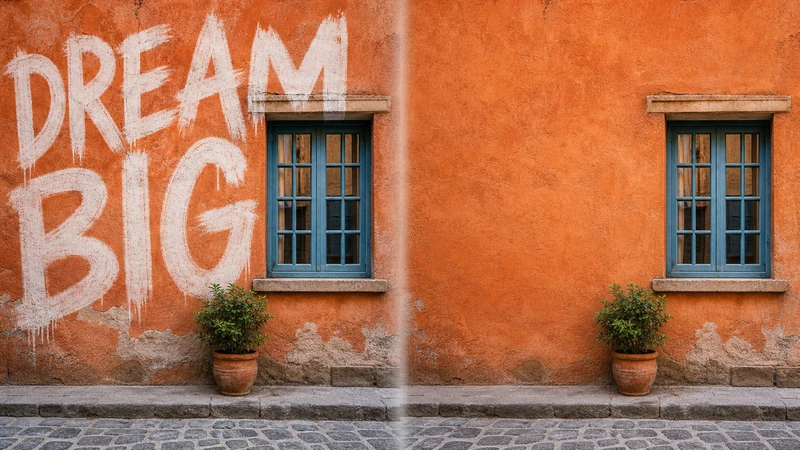
What is an AI image text remover?
An AI image text remover is an online tool that automatically detects text regions in a photo—captions, labels, subtitles, UI strings, stickers, and text watermarks—and erases them without manual masking. After removing the text, it uses deep inpainting to analyze the surrounding pixels and rebuild the texture, lighting, and structure behind it, so the edit is invisible. SharkFoto's tool runs online with nothing to install, accepts JPEG, PNG, and WEBP files, preserves the original resolution, and returns clean, watermark-free images in seconds that are free to use commercially.
At a glance
Detection and removal
Find and erase every kind of on-image text without manual selection.
Intelligent auto-detection
Advanced AI automatically identifies all text regions in your image—captions, labels, subtitles, UI overlays, and more—without any manual selection or masking.
All text types supported
Handles captions, subtitles, labels, annotations, UI strings, stickers, overlays, and text watermarks across a wide variety of fonts, sizes, colors, and orientations.
Seamless background reconstruction
Pixel-level inpainting reconstructs textures, lighting, depth, and structure behind removed text, making edits invisible to the naked eye.
Quality and workflow
Keep full image fidelity from upload to export.
Lightning-fast processing
Get clean, text-free images in seconds. An optimized AI pipeline delivers professional results without the wait, ideal for tight deadlines.
High-resolution output
Preserves full image quality and resolution throughout the process. Export in JPEG, PNG, or WEBP ready for web, print, or design pipelines.
Refine and re-run
Not happy with a spot? Re-edit or refine the same image, then upload your next one and process additional images one at a time with consistent quality.
How to remove text from an image
Erase unwanted text and rebuild the background in three steps, no design skills required.
Upload your image
Upload any image containing unwanted text—product photos, posters, screenshots, or social media images. Supports JPEG, PNG, and WEBP files.
AI detects and removes text
The AI engine automatically scans and identifies all text regions, erases them, and uses intelligent inpainting to reconstruct the background seamlessly.
Download your clean image
Preview the text-free result and download it in your preferred format at the original resolution, ready for immediate commercial use.
What you can use it for
Clean product photos
Strip promotional text, price tags, and stickers from e-commerce product images for consistent, distraction-free catalog listings.
Reusable stock imagery
Remove captions and labels from stock or archive photos so you can repurpose the clean visual in new designs and layouts.
Marketing and ads
Take out old headlines, offers, or dates baked into a graphic so the same image can be reused across new campaigns.
Screenshots and UI
Erase on-screen text, UI strings, and annotations from screenshots for documentation, tutorials, or mockups.
Social media reposts
Clean subtitles, meme text, and overlays off social images before reworking them for a new post or platform.
Content cleanup
Remove text overlays from your images one at a time to build cleaner visuals and content libraries for your projects.
Frequently asked questions
What types of text can it remove?
How does it reconstruct the background behind the text?
Will removing text reduce my image quality?
How do I get the best results?
What image formats are supported?
Can I re-edit or clean another image?
Is the AI image text remover free?
Can I use the results commercially?
Is my uploaded image private?
How is this different from the watermark remover?
Limitations to keep in mind
Complex backgrounds are harder — Text sitting over busy patterns, faces, or intricate detail is more difficult to reconstruct perfectly; flat or simple backgrounds give the cleanest results.
Low resolution limits accuracy — Small or low-resolution images give the AI fewer surrounding pixels to work from, so detection and inpainting quality can drop. Upload the highest resolution available.
Built for text, not every object — This tool targets text-based content. For logos, graphic watermarks, or removing objects and people, use the dedicated watermark remover or image editing tools instead.
Related tools & models
Ready to remove text from your images?
Clean up your images instantly with AI-powered text removal. No design skills needed, and a free tier is available for all users.