- "image": "",
- "enhance_model": "Standard V2",
- "output_format": "jpg",
- "upscale_factor": "2x",
- "face_enhancement": true
No effects available
AI Image Upscaler
Upscale an image 2x, 4x or 6x and enhance its quality at the same time. The AI rebuilds real detail instead of stretching pixels, so a small or blurry picture comes back sharp - and there is no size limit on what you upload.
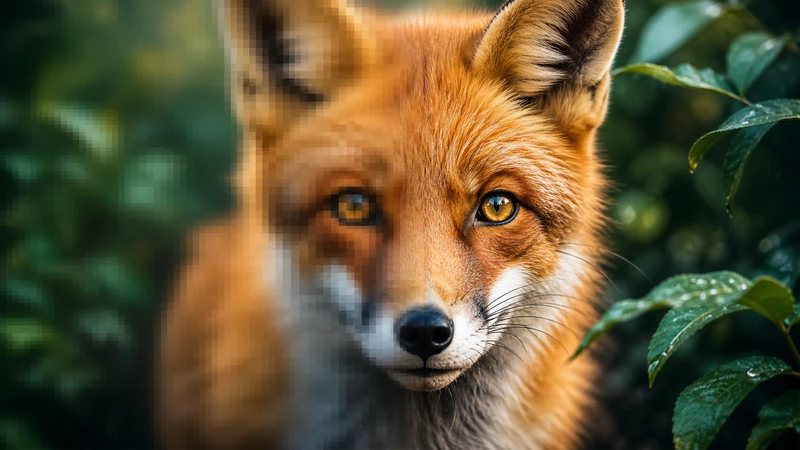
An AI image upscaler - also called a picture upscaler or an image clarity enhancer - increases the pixel dimensions of a picture and reconstructs the detail that was never there, which is what separates it from a normal resize. It doubles as an image quality enhancer: blur, jpeg blocks and noise are cleaned up as the picture is enlarged, so a 600 pixel product shot or a screenshot saved years ago comes back usable. SharkFoto runs Topaz, the engine used by professional retouchers, with five enhancement profiles - standard photo, low-resolution photo, high fidelity, digital art and text - plus an optional face enhancement pass. You can upload anything from a tiny thumbnail to a 16 megapixel phone photo: large files are handled, and a 2x pass on a big photo is often the right choice when all you want is more clarity rather than more pixels.
At a glance
Why choose SharkFoto Image Upscaler
Professional-grade upscaling that adds real detail instead of just enlarging pixels.
Up to 6x enlargement
Scale images 2x, 4x or 6x while the AI rebuilds fine detail and clarity, ready for large prints or high-resolution displays.
Detail reconstruction
AI analyzes and rebuilds textures, edges, and fine structures during enlargement so results look natural rather than stretched or soft.
Noise and artifact removal
Intelligent noise reduction cleans up compression artifacts and grain from low-quality sources while keeping the image sharp.
Smart enhancement
Colors, contrast, and sharpness are refined during upscaling for a polished, professional-quality output.
Multiple formats
Upload JPG, JPEG, PNG, or WEBP and download the upscaled result in your preferred format.
Privacy protected
Images are transmitted over SSL/TLS are never used to train AI models, and can be deleted from your account at any time; you can upscale without creating an account.
How to upscale an image with AI
Upload, pick how much bigger you want it, download.
Upload your image
JPG, PNG or WebP. Anything from a small thumbnail to a full-size phone photo - there is no megapixel limit.
Choose the upscale and profile
Enhance only keeps the current size and just cleans the picture up. 2x, 4x and 6x make it bigger - credits go up with the size. Then pick what the image is: standard photo, low-resolution photo, high fidelity, digital art or text.
Download the result
Get the enlarged, sharper image back in seconds, watermark free, as JPG or PNG.
What you can use the image upscaler for
Photography
Enlarge portraits and event photos for printing and restore low-resolution shots pulled from old archives.
Print production
Prepare high-resolution files for large-format prints, posters, and other materials that need clean detail at scale.
E-commerce and product listings
Sharpen and enlarge product photos so listings look crisp on high-density screens and zoom views.
Web and social media
Upscale images for websites, banners, and social posts so visuals stay sharp across devices and platforms.
Design and graphics
Bring small source images up to usable resolution for presentations, layouts, and graphic design projects.
Photo restoration
Improve the quality of scanned or aged photos and enlarge them without amplifying grain and compression noise.
Frequently asked questions
How much can I upscale an image?
Will upscaling make my image blurry?
What image formats are supported?
How long does upscaling take?
Is there a limit on the image size I can upload?
Can I upscale more than one image?
Is this image upscaler free?
Can I use the upscaled images commercially?
Is my image data secure?
Does it really increase image resolution, or just stretch the picture?
Can it be used as an image quality enhancer without making the picture bigger?
Which enhancement profile should I pick?
Can it fix a very blurry or old photo?
How many credits does each upscale cost?
Limitations to keep in mind
Reconstruction, not recovery — The AI predicts what detail belongs there from what it can see. It is convincing, but a face that is only a few pixels wide is being reimagined rather than recovered - do not treat the result as evidence.
Higher factors magnify flaws — 6x on an already noisy or heavily compressed picture enlarges the problems too. Start at 2x, and use the low-resolution profile when the source is small or blocky.
Faces can look smooth — Face enhancement sharpens faces, and on some portraits that reads as a little too clean. Turn it off in the options if you prefer the original texture.
Related tools & models
Ready to upscale your images?
Turn low-resolution photos into sharp, high-resolution images in seconds. No credit card required.