AI Crying Filter
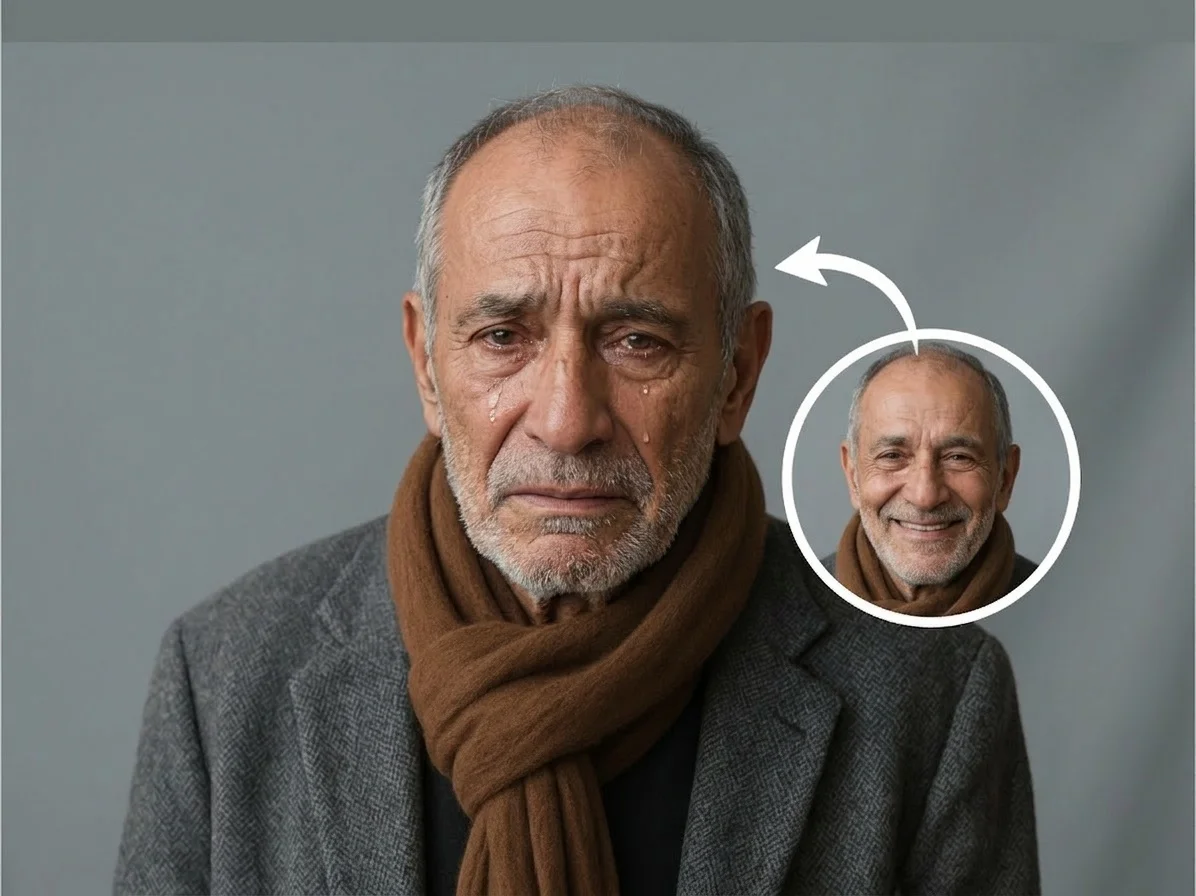
Turn any portrait into a convincing crying face in seconds. SharkFoto's AI crying filter adds glistening tears, welling eyes, and wet, flushed cheeks to a photo while keeping the person fully recognizable — no messy edits, no Photoshop skills. Sign up free to get 10 credits, upload a clear face photo, run the ai crying filter, and download the result with no watermark, ready to share as a meme, a reaction shot, or an emotional edit.
 PopularAI Crying Filter
What is an AI crying filter?
An AI crying filter is a photo tool that adds a crying expression to a face — teary, welling eyes, tears running down the cheeks, and a subtle emotional shift in the features — without changing who the person is. You upload a photo, the AI reads the eyes, cheeks, and lighting, and it paints on realistic tears and a crying look that blends into the original image instead of sitting on top of it.
All AI Crying Filter Effects
Two crying effects — a still teary-eyed photo, or a video where the tears well up and fall. Pick one to start.






Before & after
A calm portrait, turned into a teary-eyed crying face.
 Before
 After
After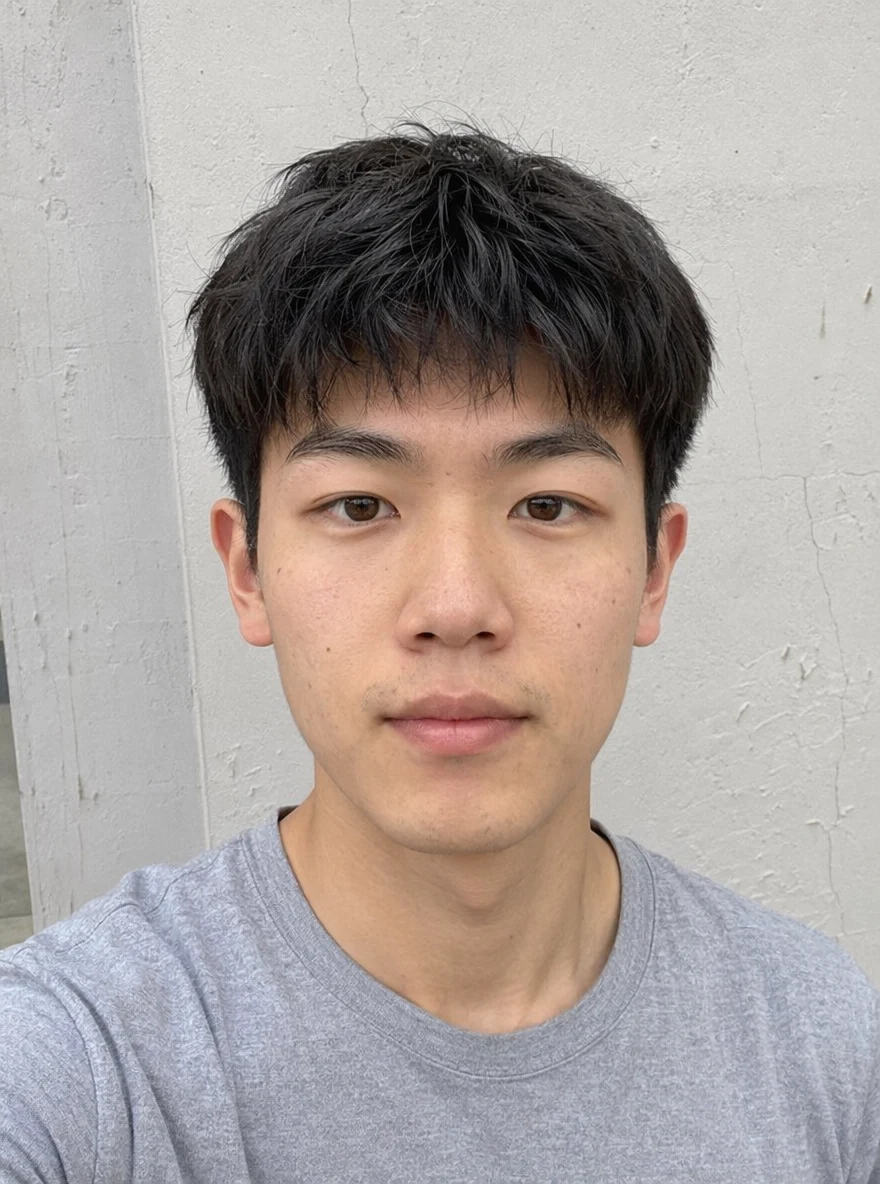 Before
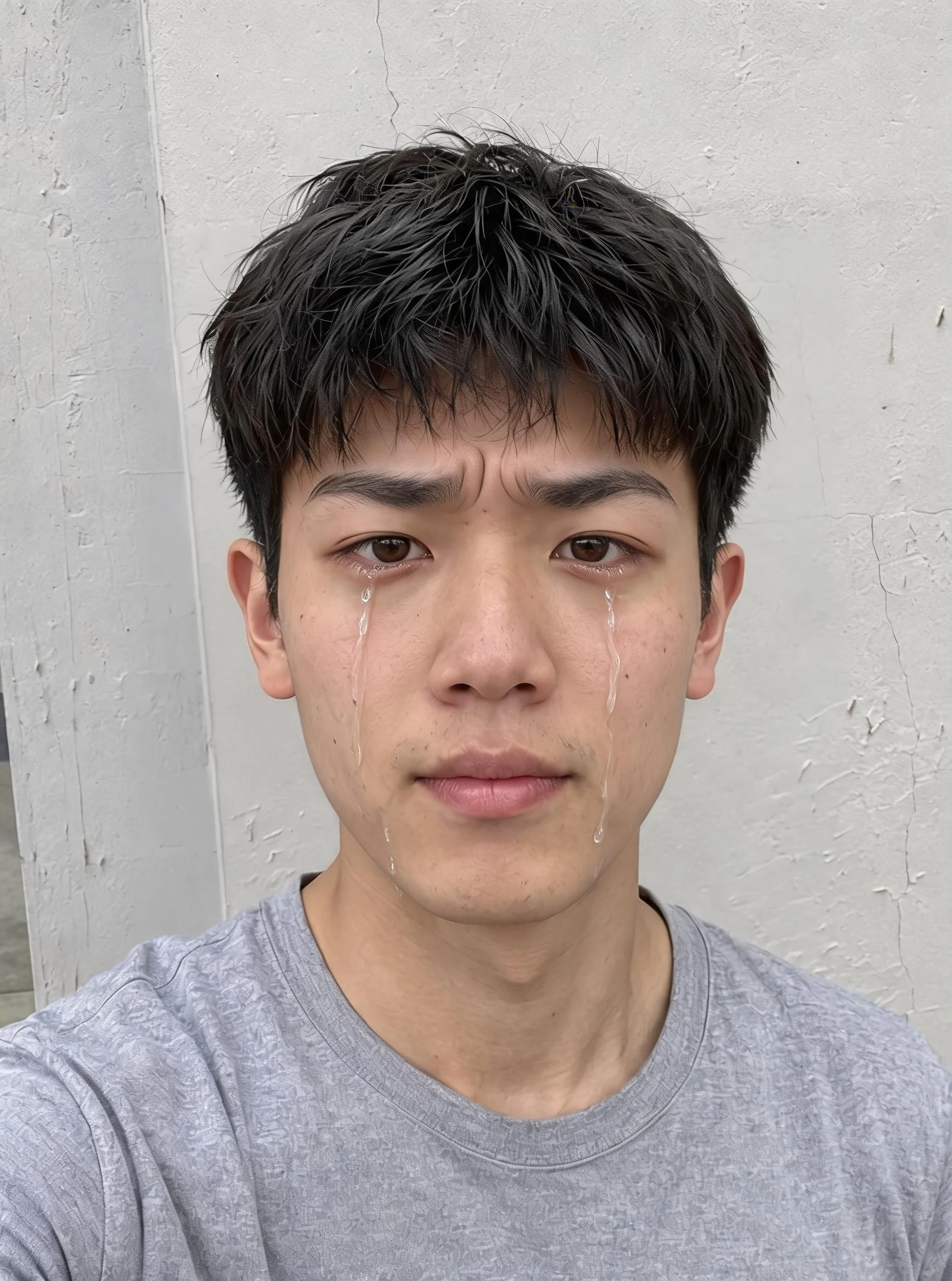 After
After Before
 After
AfterWoman Face Home
How to use the AI crying filter
Three steps, right in your browser.
Upload your photo
Drag in or select a clear, front-facing photo where the eyes and cheeks are fully visible. Even lighting and a straight-on angle give the AI the most to work with. Your photo is used only to make your result.
Pick the crying effect
Sign in for your 10 free credits, then choose the AI Crying Filter for a still teary-eyed photo, or Cry Me A River to watch the tears well up and fall in a short video. The AI matches the tears to the face's lighting and angle so they catch the light like real ones.
Download and share
Preview the crying result, then download it at full resolution with no watermark. Post it as a reaction, drop it in a group chat, or use it in a meme or emotional edit.
What you can make
Popular ways people use the crying filter.
Reaction memes & jokes
Turn a friend's grinning selfie into a fake crying face for the group chat, or make yourself 'cry' over a bad exam result — the recognizable-but-teary look lands the joke.
Crying reaction videos
Make the tears actually roll with a short crying video, perfect for a dramatic 'I'm not crying, you're crying' reaction clip on your feed or stories.
Playful sympathy posts
React to a sad announcement, a canceled show, or a sold-out concert with a teary-eyed version of your own photo instead of a plain crying emoji.
Story & character edits
Give a character portrait or a roleplay avatar real, glistening tears for a heartbreak scene, a dramatic thumbnail, or an emotional story moment.
Meme templates
Build your own crying-face reaction images from any portrait, so your templates use a real, believable teary expression instead of a stock crying sticker.
Before-and-after emotion swaps
Post a smiling photo next to its teary twin to play up a mood swing, an inside joke, or a 'how it started vs. how it's going' bit.
Why use SharkFoto's crying filter
Realistic, light-matched tears
The AI adds tears that well in the eyes, streak down the cheeks, and catch the light at the same angle as the rest of the photo, so they read as real moisture rather than pasted-on droplets.
Keeps the person recognizable
It shifts the expression into a crying look and adds wet, flushed cheeks while preserving the face's identity, so it still clearly looks like the same person — just in tears.
Still image or moving tears
Get a teary-eyed photo from the AI Crying Filter, or use Cry Me A River to turn the same face into a short video where the tears actually well up and fall.
10 free credits, no watermark
Sign up free and get 10 credits to start making crying edits. Your download comes at full resolution with no watermark, so it's clean enough to post, send, or drop into a meme.
Tips for the best results
Use a clear, front-facing photo — the AI needs to see both eyes straight on to place tears that follow the face; steep angles come out lopsided.
Keep the eyes open and unobstructed — sunglasses, hair, or hands over the eyes give the tears nowhere natural to well up and fall from.
Start from an evenly lit photo — consistent lighting helps the tears catch the light the same way the rest of the face does, so they look wet and real.
A neutral or slight expression works best — an already-extreme grin or grimace can fight the crying look; a calmer starting face turns teary more believably.
Use the highest-resolution photo you have — low-res or heavily compressed images limit how sharp and glistening the tear detail can be.
Frequently asked questions
Is the AI crying filter really free?
What kind of photo works best?
Do I get an image or a video?
Will the person still look like themselves?
How long does it take?
Is my photo safe and private?
Can I use the result commercially?
Related AI effects
More ways to reshape the mood of a photo.