AI Zombie & Monster Filter
Turn an ordinary selfie into a flesh-crawling zombie, a fanged vampire, or a raging werewolf in seconds. SharkFoto's AI zombie and monster filter transforms the person in your photo into a horror-movie version of themselves — rotting skin, glowing eyes, a Ghostface reveal, or a monster crashing into frame — and animates it, so a single still becomes a jump-scare clip you can post. Sign up free to get 10 credits, pick a monster effect, and download your result — a short video for most looks, or a high-res image for the graffiti-style monster art — with no watermark, ready for Halloween, TikTok, or a group-chat prank.
 PopularZombie Mode
What is an AI zombie filter?
An AI zombie filter is an effect that transforms a photo of a person into an undead or monstrous version of themselves — rotting skin, sunken eyes, and eerie horror lighting — and animates the change into a short clip. You upload a photo, pick a monster look like zombie, vampire, or werewolf, and download the result — a few-second MP4 for most monster looks, or a high-resolution image for the graffiti-style monster art. It's a costume-free way to get a movie-grade scare from one selfie.
All Zombie & Monster Effects
Nine monster effects — zombie, vampire, werewolf, skeleton, devil and more. Pick one to start generating.
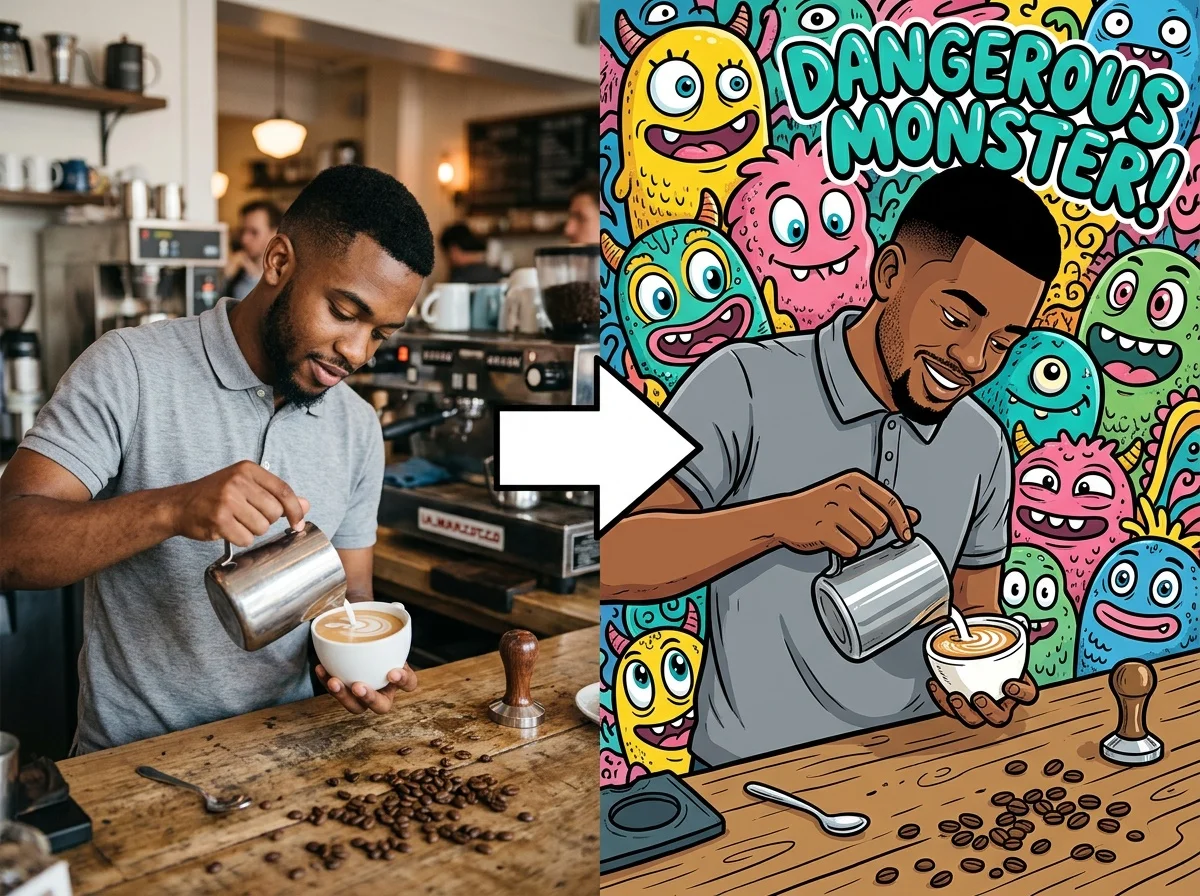



















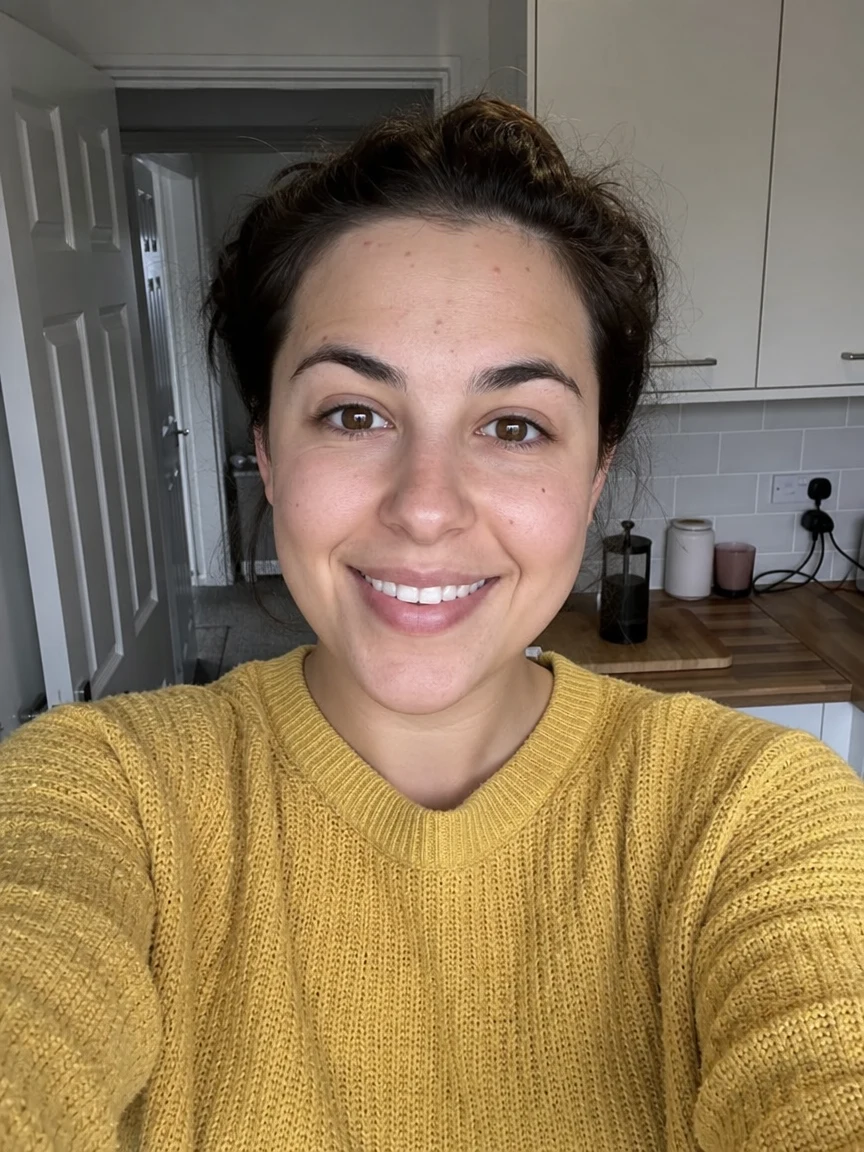
Before & after
An everyday selfie, turned into a monster.
 BeforeAfter
 BeforeAfter
 BeforeAfter
Woman Yellow Kitchen
How to make an AI zombie video
Three steps, right in your browser.
Upload your photo
Drag in or select a clear photo of the person you want to transform. A well-lit, front-facing shot where the face is fully visible gives the AI the most to work with. Your photo is used only to make your result.
Pick a monster effect
Sign in for your 10 free credits, then choose your horror look — Zombie Mode for the classic undead, Vampire Royalty, Werewolf Rage, a bare-bones Skeletal Bae, or a creepy devil smile. The AI transforms your face and animates the reveal so it looks like a movie effect, not a sticker.
Download and share
Watch the preview, then download your monster result — a full-resolution MP4 for the animated looks, or a high-res image for the graffiti-style monster art — with no watermark. Post it, text it to friends, or drop it into a Halloween reel right away.
What you can make
Popular ways people use the zombie and monster filter.
Halloween posts
Skip the makeup chair — turn a normal selfie into a full zombie or vampire transformation for your spookiest Halloween post yet, all from one photo.
TikTok & Reels scares
Feed the horror-transformation trend with a scroll-stopping before-and-after clip that morphs you into a monster in a few seconds.
Group-chat pranks
Send a friend a creepy Zombie Hand reveal or a monster crashing into frame for a harmless jump-scare that lights up the chat.
Costume & party invites
Preview a costume idea or set the tone for a Halloween party invite by showing off the werewolf or vampire look before the big night.
Creators & horror channels
Give a horror short, thumbnail, or spooky-season series a movie-grade monster transformation without a VFX budget or prosthetics.
Cosplay & fandom fun
Turn your portrait into a Ghostface-style terror or a gothic vampire to share with your community during spooky season.
Styles to choose from
From classic undead to fanged and furry — pick the monster you want to become.
Zombie
The classic undead look: gray, decaying skin, sunken eyes, and a slow, eerie animated reveal.
Vampire
A pale, regal vampire with fangs, blood-red accents, and gothic horror lighting.
Werewolf
A snarling, fur-covered werewolf mid-transformation, teeth bared and eyes glowing.
Skeleton
A bony, skull-faced look that strips your portrait down to the bone for maximum creep factor.
Devil
A sinister grin that twists into a wicked, devilish smile for a subtle but unsettling scare.
Why use SharkFoto's zombie & monster filter
Movie-grade monster transformation
The AI reshapes your real face into a convincing zombie, vampire, or werewolf — decayed skin, fangs, glowing eyes, and horror lighting — so it reads like a film effect instead of a flat overlay filter.
Animated reveal, not a still
Most of these are video effects: the AI animates the transformation and adds motion like a lunging monster or a reaching zombie hand, turning a single photo into a short, shareable jump-scare clip.
Works from one selfie
No costume, makeup, or editing skills needed. One clear photo is enough for the AI to keep your likeness recognizable underneath the monster look.
10 free credits, no watermark
Sign up free and get 10 credits to start transforming right away. Clips download at full resolution with no watermark burned across them, so they're clean enough to post anywhere.
Tips for the best results
Use a clear, front-facing photo where your face is fully visible — the AI transforms the face directly, so a sharp, unobstructed shot makes the monster look far more convincing.
Start from an evenly lit photo — harsh shadows or very dark shots can muddy the transformation and hide the horror detail.
Keep the background simple — busy backgrounds can warp as the AI adds motion and effects around you.
Match the effect to the look you want — Zombie Mode nails the classic undead scare, while Vampire Royalty or Werewolf Rage give a more stylized, character-driven transformation.
Use the highest-resolution photo you have — low-res or heavily compressed images limit how sharp and detailed the final clip can be.
Frequently asked questions
Is the AI zombie filter really free?
What kind of photo works best?
Do I get an image or a video?
How long does it take to generate?
Is this scary or gory?
Is my photo safe and private?
Can I use my zombie video commercially?
Related AI effects
More AI effects to transform yourself.